How to Debug a .NET Microservice
In this guide, we’ll cover how to debug a .NET microservice running in a Kubernetes environment using mirrord. You’ll learn how to set up and use mirrord to debug .NET microservices in the command line.
Tip: You can use mirrord to debug, test, and troubleshoot your applications locally with Kubernetes context, without needing to build or deploy each time.
Common debugging techniques for microservices in .NET
It can be cumbersome to debug microservices on Kubernetes. The lack of a debugging workflow for applications with multiple runtime dependencies in the context of Kubernetes makes it even harder. The following are common ways of debugging microservices with strict runtime environment dependencies:
Continuous Deployment
Build a container image and deploy it to a Kubernetes cluster dedicated to testing or staging. The iterative process of building, deploying, and testing is resource-intensive and time-consuming, especially for testing frequent code changes.
Log Analysis
One of the most common ways to understand the application behavior in a cluster is by analyzing logs. Adding extra logs to extract runtime information on the application is very common. Collecting and analyzing logs from different services can be effective but it isn’t the best real-time debugging solution.
Remote Debugging
Developers can use remote debugging tools built into IDEs like Visual Studio or JetBrains Rider to attach to processes already running in a Kubernetes cluster. While this allows real-time code inspection and interaction, it still requires heavy overhead from the IDE and a separate debug configuration for the deployment which can potentially affect the application’s performance while debugging.
The above methods can be used by themselves or they can be used together.
Introduction to debugging .NET microservices with mirrord
With mirrord, you don’t have to think of building and deploying your code to clusters just for debugging. You can run your applications locally, and mirrord will mirror incoming and outgoing traffic, files, and environment variables between the local code and cluster allowing you to debug and test your code as if it were running in the cluster.
Sample application setup
In the example below, our .NET application will run locally. It will need to have the network information and environment of a Kubernetes Pod to debug. This Kubernetes Pod is running as part of a staging application deployment and will be our mirroring target.
The sample application is a Guestbook built with ASP.NET Core and Redis. It stores guestbook entries in Redis and displays them on a web interface.
Let’s get started with some prerequisites by setting up a test cluster and deploying our mirroring target.
Prerequisites
Make sure you have the .NET 10.0 SDK (or higher) installed locally. You can download it from the official .NET website .
Set up the Kubernetes cluster to test our application setup.
- Start an instance of a development cluster like minikube, k3d, kind, etc. We are only using a minikube cluster here as an example. You should be using a staging/dev/test cluster where this app is already deployed.
minikube start
- Clone the repo with the sample .NET application.
git clone https://github.com/metalbear-co/mirrord-dotnet-debug-example
cd mirrord-dotnet-debug-example
- Deploy the application to mimic a staging environment setup.
kubectl create -f ./kube

deployment.apps/dotnet-guestbook created
service/dotnet-guestbook created
deployment.apps/redis created
service/redis created
Once the above is deployed, our application architecture now looks like this:
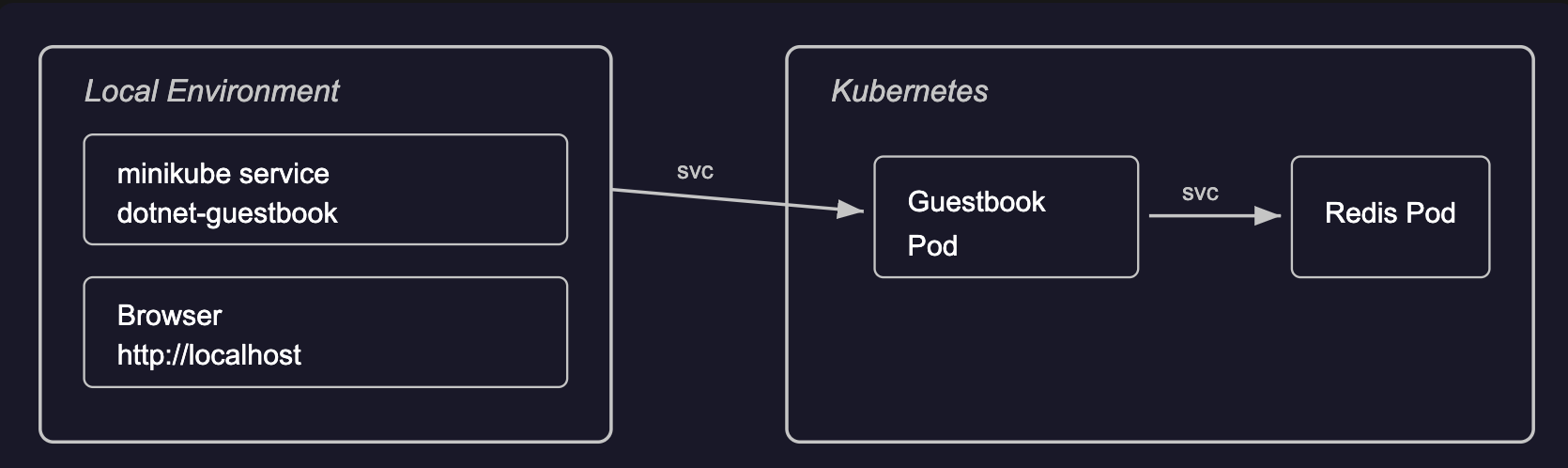
- A
dotnet-guestbookDeployment running an ASP.NET Core web server on port 8080 - A
redisDeployment running Redis on port 6379 - A
dotnet-guestbookService (LoadBalancer) exposing the web server on port 80 - A
redisService exposing Redis on port 6379
We have our staging application deployed now. Let’s run the microservice with mirrord next. This will allow us to run the local .NET application in the context of Kubernetes without having to build and deploy it over and over again for testing.
Debug in the CLI with .NET and mirrord
- Run the application with
dotnetin the CLI
Let’s run the following command to check if the application fails to run:
dotnet run --project src
On the run above we can see that the application run fails because this local execution doesn’t have access to the Redis instance running inside the Kubernetes cluster we have created.
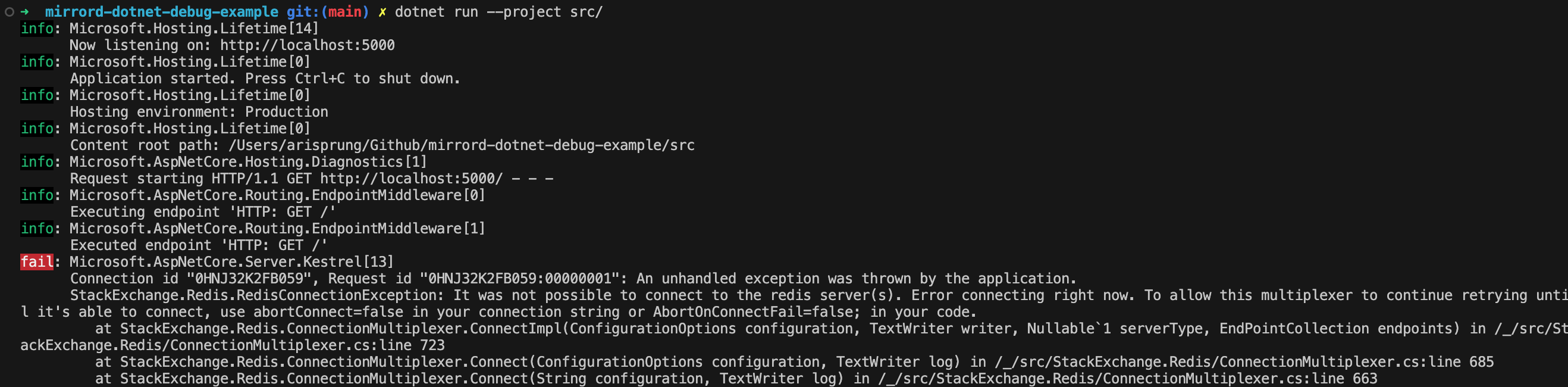
The microservice needs access to the “redis” service hosted on the cluster. To run the .NET microservice in the context of the Kubernetes cluster, we can use the mirrord.
- Installing mirrord
Install the mirrord CLI to run the Guestbook service within the context of the cluster so that it is able to communicate with the redis service in the cluster. Follow the installation guide for mirrord here .
- Run the Guestbook application with dotnet and mirrord in the CLI
In a new terminal, run the following command to run the Guestbook application in the context of Kubernetes.
mirrord exec -f mirrord.json -- dotnet run --project src
The -f mirrord.json flag points to the mirrord configuration file which specifies:
- The target deployment (
deployment/dotnet-guestbook) - Network settings: incoming traffic is stolen.
{
    "target": "deployment/dotnet-guestbook",
    "feature": {
      "network": {
        "incoming": "steal",
        "outgoing": true

      }
    }
  }
You should see the following output which will let you know that the Guestbook has started in debug mode.
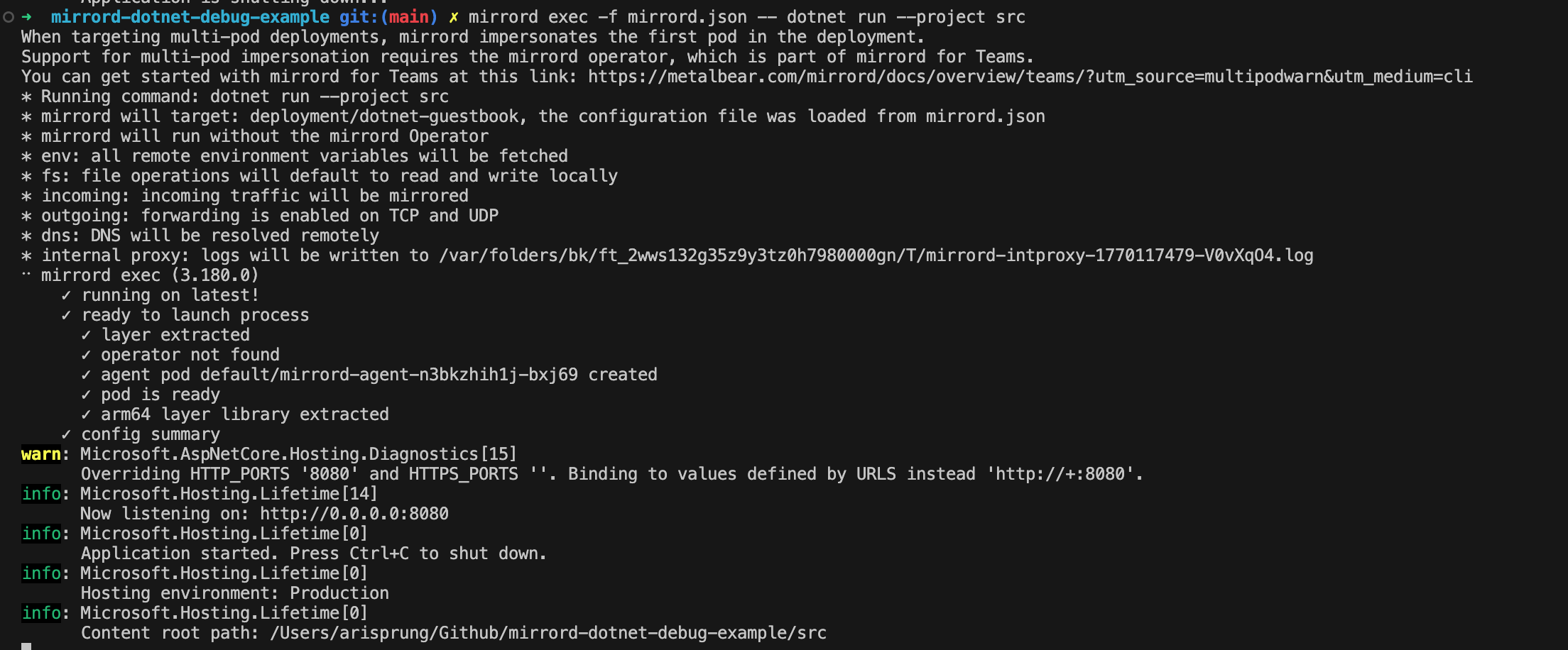
The target impersonated Pod here is the Guestbook Pod. mirrord lets your local process use the mirrord-agent Pod as its execution context—meaning your app gets the same environment variables, file system, and network identity as if it were running inside that Pod in the cluster.
mirrord mirrors traffic from the cluster to the locally running process.
The application will be available at http://localhost:8080.
After you have run the guestbook program with mirrord you should be able to make your changes and rerun the service as necessary. You can even run the program in debug mode and attach a debugger if required.
Debug the Guestbook application with VS Code and the VS Code mirrord extension
In this section of the guide, we are going to use the VS Code mirrord extension to help debug the .NET application. If you would like to see how we can do the same in the CLI, go to this section of the guide.
The application in question is Guestbook, a simple note-taking app written in ASP.NET Core with support for storing notes in Redis. The source code for the test application is available on GitHub at https://github.com/metalbear-co/mirrord-dotnet-debug-example . We will use it as a follow-along .NET application for debugging with mirrord.
Setup VSCode with the mirrord extension
To get started, install mirrord in VSCode.
Extension installation
You can install the plugin by searching for mirrord in the extensions.
After mirrord is installed, you will see a mirrord button in the bottom left corner of your VSCode instance.

mirrord configuration
Let’s add a new config file for mirrord, which we can use with VS Code for debugging. The configuration below contains the target deployment from where we need to mirror the context.
{
    "target": "deployment/dotnet-guestbook",
    "feature": {
      "network": {
        "incoming": "steal",
        "outgoing": true

      }
    }
  }
If you want to steal traffic from a multipod deployment, you can learn more about mirrord for Teams which provides this feature. Right now, we only have one pod in this deployment, and mirrord’s OSS features should work perfectly for us.
To ensure that the configuration file created is read by the VS Code mirrord extension, hover over the mirrord button we mentioned earlier and press the ‘Select active config` option. From the given prompt, enter the location of the configuration to be consumed by the plugin.

Once the active configuration is selected, we can start using mirrord with VS Code.
Run and Debug with and without mirrord in VSCode
Now let’s use mirrord to mirror the context from Kubernetes to our locally running .NET application.
Run and Debug with the mirrord plugin enabled
Enable the mirrord plugin by clicking on the mirrord button in the bottom left corner of the screen. The enabled button should look like the one below.

Before running the application, restore NuGet package dependencies. From the project root, run:
dotnet restore
After that, let’s Run and Debug our application with mirrord by selecting Run and Debug from the Run and Debug tab.

Upon choosing the .NET Pod as the target, you can see logs similar to the ones below with the .NET app, call stack and the terminal for debugging starting successfully.

Once the app is running with the mirrord extension, access it on localhost:8080 in the browser. You will see the following UI to the mirrord Guestbook application.

Now, let’s debug the application with mirrord.
Debugging the application with the mirrord plugin
We can now be sure that mirrord is working properly.
Let’s set a debug breakpoint in the application and see how it runs. I want to put a breakpoint in the application every time I create a note with the Guestbook application. The below line of code is where I am going to put the breakpoint.

From http://localhost:8080, try publishing a new entry to the guestbook, which would hit the debugging entry point.
You should hit the breakpoint as shown below:
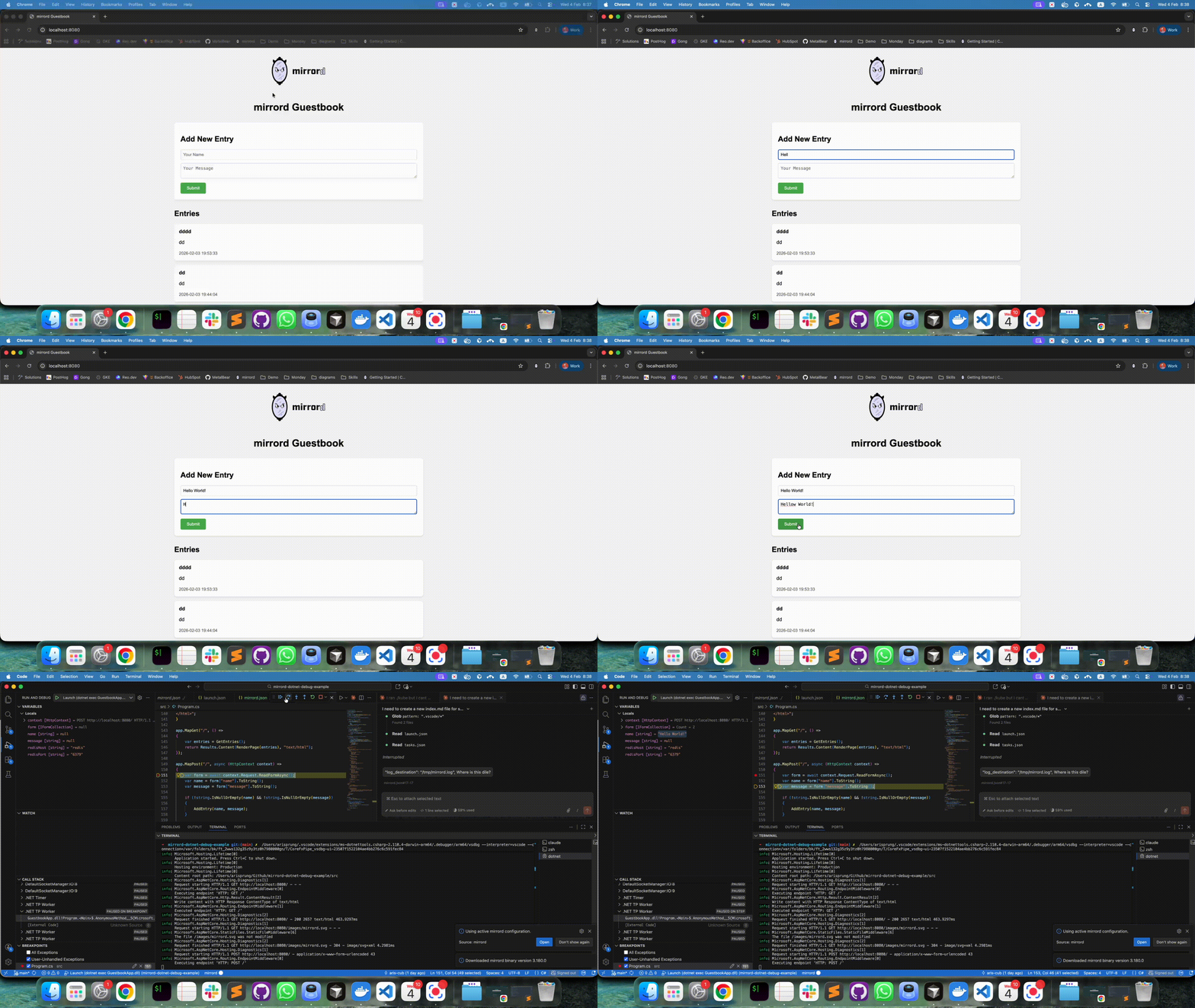
We can debug the issue now as the breakpoint is hit.
You now know how to debug your .NET microservice with VS Code + mirrord without having to build and deploy your application everytime.
Debugging with mirrord vs. other debugging techniques
mirrord distinguishes itself by eliminating the need for repeated building and deployment cycles. It allows developers to run the application locally while providing the necessary network and execution context of the target Kubernetes Pod. In this case, the local application behaves as if it were running within the cluster, enabling developers to debug using familiar tools without the overhead to build and deploy.
Conclusion
This guide explored how to use mirrord in VSCode using the mirrord extension and the mirrord CLI. We demonstrated how developers can set breakpoints in their IDE or CLI debugger and step through code execution while leveraging the live Kubernetes environment.
By enabling local execution with Kubernetes context, mirrord helps developers save substantial time during debugging.
Curious to try it out? Give mirrord a go and see how it works for you. Got questions? Hop into our Slack and let us know!
